Design-to-Code Pipelines: Turning Figma Mockups into Frontend with v0
 Jun, 25 2026
For years, the handoff between designer and developer has been the bottleneck of product development. You spend hours crafting a pixel-perfect interface in Figma is a cloud-based interface design tool that allows teams to create wireframes, prototypes, and high-fidelity designs collaboratively., only for the developer to rebuild it from scratch in code. The result? Misinterpretations, inconsistent spacing, and weeks lost to back-and-forth revisions.
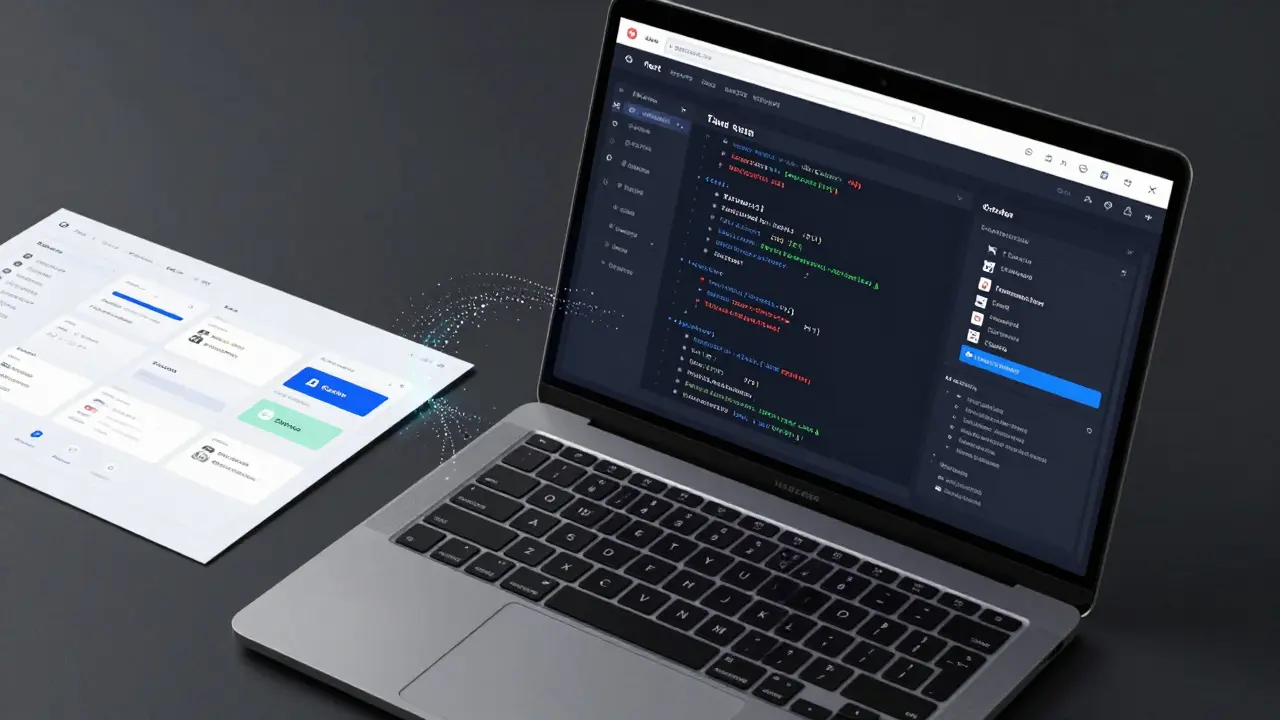
That era is ending. With the rise of AI-powered tools like v0.dev is an AI-powered generative UI tool by Vercel that converts natural language prompts or image inputs into production-ready React code using Tailwind CSS and shadcn/ui., we can now bridge that gap instantly. This isn't just about copying pixels; it's about creating a design-to-code pipeline that turns your mockups into functional, maintainable frontend architecture.
Why Traditional Handoffs Fail (And How AI Fixes It)
The old way works like this: Designer exports assets -> Developer inspects elements -> Developer writes HTML/CSS -> Designer reviews -> Repeat until it looks right. It’s slow, error-prone, and destroys momentum. According to industry data from 2024, manual interpretation creates gaps where up to 40% of design intent is lost in translation.
AI-driven pipelines change the game. Instead of manually coding every button and card, you use tools that understand context. When you feed a Figma frame into an AI generator, it doesn’t just see rectangles; it sees a "Card Component" with a "Primary Button." It maps these visual elements to semantic code structures automatically.
This shift reduces design-to-development time significantly. But here’s the catch: AI isn’t magic. If your input is messy, your output will be garbage. That’s why the real secret isn’t the AI tool itself-it’s how you prepare your designs before they ever touch the code generator.
The Core Workflow: From Figma Frame to React Component
A successful design-to-code pipeline follows three distinct phases: Preparation, Generation, and Refinement. Let’s break down how to execute each step effectively using modern tools like v0 and standard web technologies.
Phase 1: Meticulous Design Preparation
You cannot automate chaos. Before you even open v0, your Figma file needs to be structured logically. Think of your design file as a database. If the data is unstructured, the query (the AI) will fail.
- Use Auto Layout: This is non-negotiable. Auto Layout tells the AI how elements should stack and resize. Without it, the AI guesses fixed positions, leading to broken responsive designs.
- Define Design Tokens: Colors, typography, and spacing must come from a shared style guide. Don’t pick hex codes randomly. Use variables named `primary-blue` or `spacing-md`. This ensures consistency when the AI generates CSS variables or Tailwind classes.
- Semantic Naming: Name your layers clearly. A layer called "Rectangle 45 copy" tells the AI nothing. A layer called "UserProfileAvatar" helps the AI generate a component named `
`. - Component Variants: Define states explicitly. Create variants for buttons: Default, Hover, Active, Disabled. The AI needs to see these states to generate conditional styling logic.
Phase 2: Smart Code Generation with v0
Once your design is clean, it’s time to generate code. While there are many plugins, v0.dev stands out because it generates code that is actually usable in modern frameworks like Next.js and React.
Here’s how the process works:
- Capture the Design: Take a screenshot of your Figma frame or export it as a PNG. Some advanced workflows allow direct API integration, but screenshotting remains the most reliable method for complex layouts.
- Prompt the AI: Upload the image to v0. Add context in your prompt. For example: "Convert this dashboard header into a React component using Tailwind CSS. Ensure it is responsive on mobile devices."
- Select Your Stack: Choose your preferred framework. Most developers choose React with Tailwind CSS because it offers utility-first styling that mirrors design tokens closely.
- Review the Output: The AI generates the JSX code. It will likely include imports for icons and basic structure. Check if the component uses proper semantic HTML tags (`
`, `
The beauty of v0 is that it leverages shadcn/ui is a collection of re-usable components built from Radix UI primitives and styled with Tailwind CSS, designed to be copied and pasted into projects. under the hood. This means the generated code isn’t just generic HTML; it’s accessible, interactive, and styled consistently with modern best practices.
Phase 3: Human-Led Refinement
AI gets you 80% of the way there. The last 20% requires human expertise. The generated code might have hardcoded values instead of dynamic props. It might miss edge cases for accessibility.
Your job now is to:
- Extract Props: Turn hardcoded text like "Welcome User" into a prop: `{ title }`.
- Add Interactivity: Connect buttons to actual functions. The AI creates the UI; you create the UX.
- Optimize Performance: Ensure images are lazy-loaded and components are memoized if necessary.
- Test Responsiveness: Resize the browser window. Does the layout break? Adjust the Tailwind breakpoints accordingly.
Building a Scalable Design System
If you’re building a large application, generating code page-by-page is inefficient. You need a system. A scalable design-to-code pipeline relies on a centralized design system that serves as the single source of truth for both designers and developers.
Start by defining your core components in Figma: Buttons, Inputs, Cards, Modals. Once these are perfected, generate their code counterparts once. Store these components in a shared library (like a Storybook instance). When a designer updates the primary button color in Figma, update the design token in your codebase. The AI-generated components that rely on that token will automatically reflect the change.
This approach prevents "design drift," where the live product slowly diverges from the original design vision. By keeping your design tokens synchronized, you ensure that every new feature built using v0 or similar tools maintains brand consistency.
Comparing Tools: v0 vs. Other Figma-to-Code Solutions
Not all AI generators are created equal. Some produce messy, unsemantic HTML. Others generate code that is hard to maintain. Here’s how v0 compares to other popular options in the market.
| Tool | Output Format | Customizability | Best For |
|---|---|---|---|
| v0.dev | React + Tailwind | High (Edit in IDE) | Next.js/React Developers |
| Anima | HTML/CSS/React | Medium (Plugin-based) | Prototyping & Client Demos |
| Locofy | React/Vue/Webflow | High (Tagging System) | Complex Enterprise Apps |
| Figma Dev Mode | CSS Snippets | Low (Manual Copy/Paste) | Simple Style Extraction |
v0 shines because it integrates directly into the developer workflow. You don’t just get code snippets; you get full components that fit into your existing project structure. Tools like Anima are great for quick demos, but they often lock you into their ecosystem. v0 gives you ownership of the code.

Common Pitfalls and How to Avoid Them
Even with the best tools, mistakes happen. Here are the most common issues teams face when adopting design-to-code pipelines and how to solve them.
1. Over-Reliance on AI
Don’t let the AI write your business logic. It’s excellent at UI structure, but terrible at understanding your app’s specific data flow. Always review the generated code for logical errors. Treat the AI as a junior developer who writes fast but needs supervision.
2. Ignoring Accessibility
AI-generated code often lacks proper ARIA labels, keyboard navigation support, and focus states. After generating a component, run an accessibility audit. Add `aria-label` attributes to icon-only buttons and ensure contrast ratios meet WCAG standards.
3. Hardcoded Values
The AI might hardcode padding values like `p-4` instead of using a design token variable. This makes future changes difficult. Replace hardcoded utilities with variables defined in your `tailwind.config.js` file. This keeps your design system flexible.
4. Poor Image Handling
Figma images are often placeholders. The AI won’t know how to optimize them for web. Replace placeholder images with optimized formats like WebP. Implement lazy loading to improve performance.
Future-Proofing Your Pipeline
The technology is evolving rapidly. In 2026, we’re seeing tighter integrations between Figma APIs and CI/CD pipelines. Imagine a world where pushing a design change to Figma automatically triggers a GitHub Action that updates your component library. We’re getting closer to that reality.
To prepare, focus on mastering the fundamentals. Learn how React components work. Understand CSS Grid and Flexbox. Know how Tailwind utility classes map to CSS properties. The better you understand the underlying technology, the better you can guide the AI to produce high-quality code.
Start small. Pick one component-maybe a navbar or a card-and convert it using v0. Refine the process. Then scale up. By building a robust design-to-code pipeline, you’re not just saving time; you’re elevating the quality of your entire product. The gap between design and development is closing. Make sure you’re on the right side of it.
What is v0.dev and how does it help with Figma to code?
v0.dev is an AI-powered generative UI tool by Vercel. It allows designers and developers to upload screenshots or describe interfaces in natural language, and it generates production-ready React code using Tailwind CSS and shadcn/ui. This accelerates the transition from Figma mockups to functional frontend components by automating the initial coding phase.
Do I need to learn React to use v0?
While v0 can generate code without you writing it, understanding React is crucial for refining and integrating the output. The tool produces React components, so you need to know how to import them, pass props, and manage state within your Next.js or React application. It acts as a force multiplier for developers, not a replacement.
How accurate is the code generated from Figma designs?
The accuracy depends heavily on the quality of the input design. If your Figma file uses Auto Layout, consistent naming, and defined styles, the AI can achieve 80-90% accuracy in structure and styling. However, complex interactions, animations, and responsive behavior often require manual refinement by a developer to ensure they work correctly across all devices.
Can v0 handle responsive design automatically?
v0 attempts to infer responsive behavior based on the layout constraints in your design (like Auto Layout settings). It often applies Tailwind responsive prefixes (e.g., `md:flex`, `lg:grid`). However, it may not perfectly anticipate every breakpoint scenario. You should always test the generated components on various screen sizes and adjust the Tailwind classes manually if needed.
Is the code generated by v0 accessible by default?
v0 uses shadcn/ui components, which are built on Radix UI primitives known for good accessibility foundations. However, the AI might miss specific ARIA labels or focus management details depending on the complexity of the component. It is recommended to perform an accessibility audit after generation and add any missing semantic HTML attributes or ARIA roles.